
forScore
The long-running PDF sheet music reader for iPad, iPhone, Mac and Vision Pro.
Best for iPad
- iPad
- iPhone
- Mac
$24.99Read the review
A step-by-step workflow for turning a paper library into tablet-ready PDFs, with the scanner settings, apps and file habits that keep you from scanning twice.
Disclosure: Newzik is a commercial partner of SheetMusicApps. Rankings follow our published methodology, and every app's facts come from official sources and are fact-checked twice. Read our disclosure
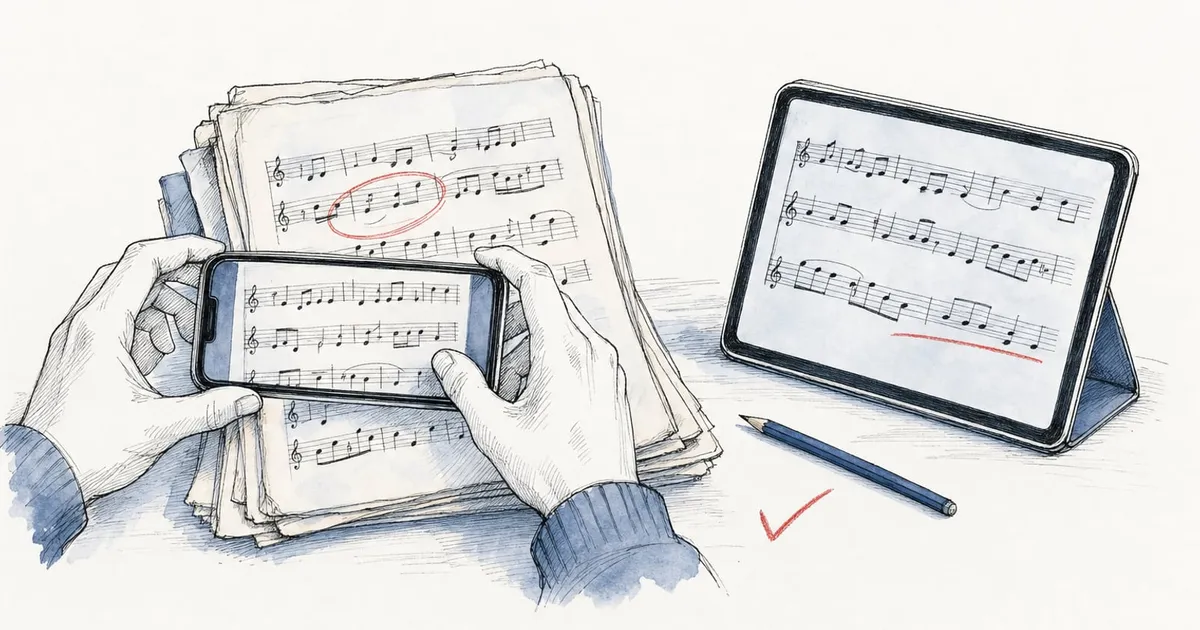
Knowing how to digitize sheet music before you start saves you from scanning the same shelf twice. The scanning itself is mechanical. The decisions you make before the first page (resolution, color mode, file names, backups) decide whether the library still works years from now.
This guide follows the job from phone or flatbed to the music stand, using the settings recommended by the people who make the tools. If you haven’t picked a reader app yet, start with our ranking of the best sheet music apps.
The best way to digitize sheet music is to scan each piece into one PDF at 300 dpi in grayscale, name it consistently, import it into a reader app, crop it there and back everything up. In order:
Digitize to PDF first, always. Convert a piece to MusicXML only when you want to hear it, transpose it or edit it, because the conversion needs proofreading.
A PDF is a picture of the page. Every reader app opens it, it looks exactly like the printed edition, and your markings sit on top. A PDF reader can’t play those notes or transpose them, and forScore and MobileSheets both say so in their documentation.
MusicXML stores the notes themselves. The W3C Music Notation Community Group describes it as an open format for sharing sheet music between applications and for archiving it, so an app can redraw the music, play it, transpose it or pull out one part.
Getting from a scan to MusicXML takes optical music recognition (OMR). Newzik’s LiveScore converts PDFs and photos inside the app (10 pages free, unlimited with Premium), although Newzik describes several voices on one staff as “fragile”. PlayScore 2 reads photos and PDFs and exports MusicXML with its Professional subscription. Our PDF to MusicXML guide covers the conversion tools.
| Features |  forScore forScore |  MobileSheets MobileSheets |  Newzik Newzik |
|---|---|---|---|
| Smart notation | |||
| Opens MusicXML | No | No | Yes |
| PDF to interactive score | No | No | Paid plan |
| Notation playback | No | No | Yes |
| Transposition | No | Yes | Yes |
| Chord & lyric charts | No | Yes | Yes |
forScore and MobileSheets are PDF-first readers, which is what most performers need on the stand. Newzik opens MusicXML and has OMR built in, but it runs only on iPhone, iPad and the web, and its headline features need a Premium subscription.
If you’re wondering how to scan sheet music without buying anything, use the scanner your phone already has: Files or Notes on an iPhone or iPad, Google Drive on Android. Each captures the page, lets you adjust the framing and produces a multi-page PDF, which is all a reader app needs.
Lay the page flat, light it evenly so the phone doesn’t cast a shadow, and hold the camera parallel to the paper. The handbook of Audiveris, an open-source music recognition engine, lists rotation, warping and shadows among the things to avoid when you place a page.
In the Files app, tap the More button, choose Scan Documents and hold the device over the page; in Auto mode it captures by itself. Drag the corners if needed, add the remaining pages, tap Done, choose a location and tap Save. Notes has the same scanner (Attachment button, then Scan Documents) but keeps the scan inside a note, so Files is the shorter route to a reader app.
Apple offers four filters: color, grayscale, black and white, and photo. Grayscale is the safe choice for music.
In the Google Drive app, tap Camera and photograph the page. Crop & Rotate fixes the framing, Filter can make the page grayscale, and Clean erases stains and fingers. Tap Add for each further page, then save as PDF rather than JPG.
Adobe Scan, free to download on iOS and Android, earns its place with bound volumes: its Straighten tool fixes pages that come out curved or tilted, and it can remove thumbs and shadows. Scans are saved to Adobe Document Cloud, and combining separate scans into one file needs a paid subscription, so capture each piece in a single session.
forScore, MobileSheets and Newzik all capture pages with the camera, and each saves something different:
| App | Built-in capture | What you get | Developer notes |
|---|---|---|---|
| forScore | Scan tool: document scanner, camera, Photos or Files | A PDF in your library | No note recognition; forScore recommends a dedicated scanner app for best results and a flatbed for archival work |
| MobileSheets | Camera option in the song editor, with an image correction screen | Image pages in a song | Pages stay images; no note recognition |
| Newzik | Scan in the Import tab (iPhone and iPad) | A new piece | Up to 24 pages per scan; Newzik suggests the Black & White or Grayscale filter |
Piascore can also photograph printed music with the camera. These tools are handy for a part handed out at rehearsal, but for a whole library, scan to PDF outside the app first so your master files sit in a folder you control. If you want a scan sheet music app that reads the notes and plays them back, you need OMR: see our ranking of sheet music scanner apps.
Scan at 300 dpi in grayscale and save each piece as one multi-page PDF. That is sharp enough for any tablet and for note recognition later; go to 600 dpi in black and white only for an archival master.
| Goal | Resolution | Color mode | Whose advice |
|---|---|---|---|
| Reading on a tablet | 100 to 150 dpi for small files, up to 300 dpi for Retina screens or zooming | Grayscale | forScore’s scanning tips |
| Converting to MusicXML later | 300 dpi, or 400 dpi for small symbols | Grayscale | Audiveris handbook |
| Archive master or IMSLP upload | At least 600 dpi | Black and white, CCITT compression | IMSLP scanning guide |
Resolution above 300 dpi rarely shows on a tablet. A 9-inch-wide page scanned at 300 dpi is 2,700 pixels across, while a 13-inch iPad Pro held upright has 2,064 pixels across its screen. The extra pixels only help when you zoom in.
Grayscale is the safer default. It keeps faint pencil markings and yellowed paper readable, and Audiveris prefers it because recognition software does its own conversion to black and white. Black and white (1-bit) makes the smallest files and looks crisp on clean modern prints, but the scanner decides which pixels turn black, and IMSLP’s guide warns that an underexposed scan shows broken notes and staff lines. Color is only worth it for colored markings or covers.
File size follows the color mode. Before compression, a 9 x 12 inch page at 300 dpi holds about 9.7 million pixels: roughly 1.2 MB in black and white, 9.7 MB in grayscale and 29 MB in color. Compression shrinks all three, and 600 dpi has four times the pixels of 300 dpi. forScore notes that its performance varies with the files you give it, so check the size of your first few scans.
If you plan to convert to MusicXML, Audiveris also advises turning off the scanning software’s own post-processing, such as “Text” or “Line Art” modes. On a Mac, Preview’s labels are confusing: “Text” produces black and white, and “Black & White” produces grayscale.
A flatbed suits bound volumes and fragile paper, and forScore recommends one for archival digitization. Check its scan area first: printed parts often exceed letter size, and Scoring Notes describes orchestral parts printed at 9 x 12 to 10 x 13 inches. A sheet-fed (document) scanner pulls a stack of loose pages through a feeder, which makes it the fast option for loose parts and photocopies, but it can’t take a bound book.
To build one PDF per piece, use your scanning software’s option to add pages to the same PDF; forScore recommends one file per score over one file per page. On a Mac, Preview opens everything in the feeder in one window, and Edit > Insert > Page from Scanner adds a page to an open document.
Use one PDF per piece, one naming pattern, and folders that mirror how you look for music. Name files before you import them: forScore warns that renaming a PDF in its folder in the Files app removes that file’s metadata and annotations.
A layout that works for most musicians:
Sheet Music/
  Brahms/
    Brahms - Clarinet Sonata No 1 Op 120 - Clarinet.pdf
    Brahms - Clarinet Sonata No 1 Op 120 - Piano.pdf
  Community Orchestra/
    2026-12 Winter Concert/
      01 Tchaikovsky - Nutcracker Suite - Viola.pdf
A few rules keep names portable. Windows doesn’t allow < > : " / \ | ? * in file names, which matters if your library ever syncs to a PC, so write “Op 27 No 2” rather than “Op. 27/2”. Start running numbers with a zero (01, 02) and write dates as year then month so files sort in order.
Then let the files carry metadata. forScore imports files, not folders, so its library runs on metadata: it reads a PDF’s Title field as the title and its Author, Subject and Keywords fields as composers, genres and tags, when you tap Fetch or automatically for new files. MobileSheets’ batch import can fill fields from folder names with a pattern such as %ARTIST%/%ALBUM%/%GENRE%, and it can turn file names into titles.
For fake books and anthologies, keep one PDF and add bookmarks: forScore builds them from a CSV or TSV index, and MobileSheets can split a large PDF into songs from a CSV file or the PDF’s own bookmarks.
Get the PDFs into the Files app (through iCloud Drive, AirDrop from a Mac or a cloud service), then send them to your reader app with the Share button or import them from inside the app. Each app has its own routes:
The long-running PDF sheet music reader for iPad, iPhone, Mac and Vision Pro.
Best for iPad

A highly configurable sheet music reader for Android, Windows, iPad and iPhone.
Best for Android and Windows

A collaborative sheet music reader for iPad and iPhone, with Newzik Web in any browser.
Best overall
If you’re still choosing, compare the best sheet music apps for iPad or, on another tablet, the best sheet music apps for Android.
Crop the white margins and straighten crooked pages inside your reader app, which leaves the PDF untouched. Do it before you start annotating your scores: forScore warns that cropping a page permanently adjusts any markings already on it.
On a tablet, every margin you keep makes the notes smaller. Apple’s specifications give the 13-inch iPad Pro 2,752 by 2,064 pixels at 264 ppi, a screen about 7.8 x 10.4 inches when held upright, so a full 9 x 12 inch page shows at roughly 87% of its printed size. Cropping half-inch margins raises that to about 95%. On the 11-inch iPad Pro the figures are about 70% and 79%, which is why screen size gets so much attention in our guide to the best iPad for sheet music.
The reader apps each have their own tools:
Keep blank pages and the original page order. IMSLP asks contributors to keep odd pages odd so that page turns fall where the publisher placed them, and the same logic applies to two-page view on a tablet. If a conductor calls page numbers, forScore can adjust its page numbers to match the printed copy.
Follow the 3-2-1 rule from CISA’s backup guidance: three copies of every important file, on two different types of storage, with one kept off-site. Include the reader app’s own backup, because annotations, setlists and metadata usually live in the app rather than in the PDFs.
Search IMSLP before you scan anything old. As of October 2026, its Petrucci Music Library lists more than 885,000 scores of about 262,000 works, and for choirs the Choral Public Domain Library (CPDL) hosts free scores of more than 56,000 choral and vocal works.
Each IMSLP file shows its copyright status, and IMSLP’s reviewers check it for Canada, the US and the EU. The main servers are in Canada, where the rules differ; in the US, a work first published before 1931 is in the public domain. To get a file onto a tablet, download the PDF in Safari and share it to your reader app, or browse from inside an app: Newzik has an IMSLP and CPDL browser, and Piascore connects to IMSLP. IMSLP’s own free app sells a membership that removes download waits.
For copyrighted repertoire, a digital edition saves the scanning. nkoda is a subscription to licensed publisher editions, and Henle Library sells Henle Urtext editions by the part, movement or bundle (see nkoda vs Henle Library). Musicnotes and Sheet Music Direct sell digital arrangements, compared in Musicnotes vs Sheet Music Direct.
It depends on the music. Public-domain scores are free to copy; for music still under copyright, copying without permission generally relies on fair use, which the US Copyright Office says courts decide case by case, with no set amount that is always allowed. This is general information, not legal advice.
These checks help you sort your shelf:
If a piece is under copyright and you’re unsure, buying the digital edition or asking the publisher settles it.
Guides
The markings players add, the pencil rules libraries expect, a step-by-step method for annotating in an app, and how 12 apps compare on annotation tools as of October 2026.
Best apps by need
Five sheet music apps with a native Windows version for PCs, Surface and other 2-in-1s, plus a plain look at which browser-based readers work on stage. US prices checked in October 2026.
Best apps by need
Four apps that turn a PDF or photo of sheet music into notation you can hear, ranked with weights that favor what they do with the result: playback, transposition and export. US prices checked in October 2026.
Filter every sheet music app by the devices you use, how you want to pay and the features you can't do without.