PDF to MusicXML: how to convert sheet music and fix the errors
What MusicXML gives you that a PDF can't, which converters are free, what optical music recognition still gets wrong, and a workflow from PDF to a clean MusicXML file.
SheetMusicApps Editorial Team·Published ·10 min read
Disclosure: Newzik is a commercial partner of SheetMusicApps. Rankings follow our published methodology, and every app's facts come from official sources and are fact-checked twice. Read our disclosure
A PDF to MusicXML converter reads the notes on a page and writes them into a file that notation software can play, transpose and edit. The reading step, optical music recognition (OMR), is never perfect, so the real job has three parts: convert, proofread, export. This guide covers the free and paid tools as of October 2026 and the checks that catch most errors.
What is MusicXML, and why convert a PDF to it?
MusicXML is an open file format that stores the music itself rather than a picture of it. The W3C Music Notation Community Group, which publishes it, calls it a standard open format for exchanging digital sheet music between applications and for archiving it, and says more than 250 applications support it.
A PDF is an image of the page: you can read it and write on it, but nothing in the file says which note is a C-sharp. Once the music is in MusicXML, software can:
extract or combine parts and redo the layout, for example with larger staves
open it in another program, such as MuseScore Studio, Sibelius, Dorico or Finale
Files end in .musicxml, or .mxl when compressed, the suffixes the W3C recommends. To read and mark up a part on a tablet, keep the PDF (see our guide to digitizing sheet music).
How do you convert a PDF to MusicXML?
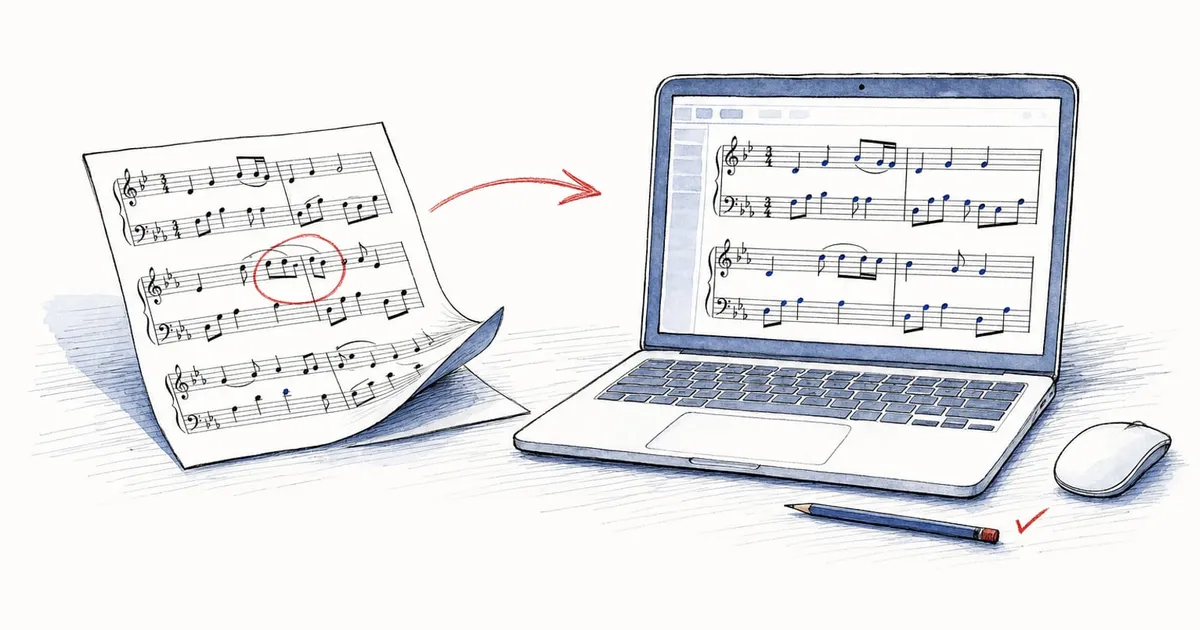
Run the PDF through an OMR tool, open the result in a notation editor, fix what it misread, then export. Step by step:
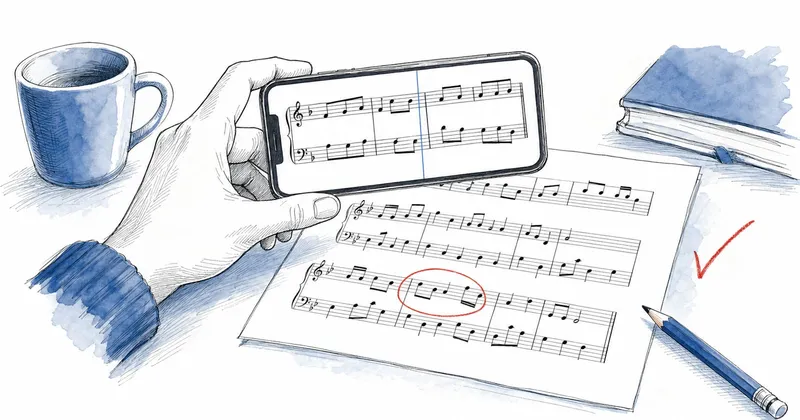
Find out what kind of PDF you have: one exported from notation software is clean and sharp, while a scan or phone photo is harder to read.
For a scan, use 300 dpi in grayscale: the Audiveris handbook calls that a good resolution for letter or A4 paper, suggests 400 dpi for small symbols and asks you to turn off the scanner’s own post-processing.
Convert with one of the tools below and save the MusicXML file.
Open the file in a notation editor. MuseScore Studio, free for Windows, macOS and Linux, opens MusicXML and compressed MusicXML with File > Open.
Proofread against the original, page by page.
Export a clean MusicXML file, a PDF, or both.
Which PDF to MusicXML converters are there?
Free tools handle most single pieces; paid ones add volume, phone scanning, playback or handwriting (as of October 2026):
Free: Audiveris, MuseScore NoteVision and ACE Studio
Audiveris is the free, open-source choice on a computer. It installs on Windows, macOS and Linux (version 5.11.0 came out in July 2026), exports MusicXML 4.0 and includes an editor for correcting the recognition before you export. Its developers say plainly that a 100% recognition ratio is “simply out of reach in many cases.”
MuseScore Studio itself doesn’t open PDFs. Its handbook lists MusicXML, MIDI and other notation formats for import, but not PDF, so the recognition step happens on the MuseScore.com website. NoteVision, launched there in July 2025, converts an uploaded sheet music file into an editable .mscz file that you open in MuseScore Studio and export as MusicXML. Muse Group says NoteVision stays free with a limit on uploads and is unlimited with a Pro+ subscription. Our MuseScore review explains how the mobile app differs from the desktop editor.
ACE Studio, an AI vocal workstation, runs a free PDF to MusicXML converter on its website. It takes PDF, JPEG and PNG files up to 3 MB, converts the first 5 pages, handles up to 2 staves and gives free users 10 conversions a day. That suits a lead sheet, a solo line or a piano piece; a choral score on four staves won’t fit.
Apps we profile: PlayScore 2, Soundslice and Newzik
These three convert inside an app you may already practice with and export MusicXML on a paid plan. In the table below, MusicXML means opening MusicXML files: PlayScore 2 exports it but can’t open it.
Features
PlayScore 2
Soundslice
Newzik
MuseScore
Smart notation
Opens MusicXMLImports and displays MusicXML files, not only PDFs.
No
Yes
Yes
?Not confirmed
PDF to interactive scoreConverts a PDF or photo of sheet music into notation you can play back or edit (optical music recognition).
Yes
Yes
Paid plan
Partly
Notation playbackPlays the notation itself back as audio.
Yes
Yes
Yes
Yes
TranspositionTransposes interactive notation or chord charts inside the app.
Partly
Yes
Yes
Paid plan
Chord & lyric chartsChord and lyric charts (ChordPro or similar) with chord transposition.
No
Partly
Yes
No
PlayScore 2 runs on iPhone, iPad, Android and Windows and processes scans on the device. The free version scans single pages from the camera and plays them back. PDF import and MusicXML export need Professional, which costs $6.99/month or $59.99/year on the US App Store as of October 2026. Notes can only be corrected in the editor you export to, and PlayScore’s terms limit its MIDI and MusicXML output to non-commercial use.
Soundslice, in a browser, turns PDFs and photos of typeset music into editable notation and asks you to confirm passages it isn’t sure about. The free plan includes 2 trial scans a month of 1 page and 32 bars each, with no export. Plus, at $5/month or $50/year, covers 100 scanned pages a month and exports MusicXML, PDF and MIDI. It doesn’t read handwriting.
Newzik’s LiveScore converts a PDF or scan into a score you can play back, loop and transpose in the iPhone and iPad app or on Newzik Web. The free version includes 10 pages in total; transposing a converted part and exporting MusicXML need Premium ($9.99/month, $44.99/year or $179 lifetime on the US App Store). It fits musicians who already read from an iPad and want converted parts in the same library. The trade-offs: conversion needs a connection and takes a few minutes per page, the notation can’t be edited in Newzik, there is no Android or Windows app, and publisher-licensed scores can’t be converted. For a one-off job, free Audiveris or a single month of Soundslice Plus costs less.
Paid desktop tools: ScanScore, PhotoScore and PDFtoMusic Pro
ScanScore 3, for Windows and Mac, scans, edits, plays back and exports MusicXML. It is sold as 1-year licenses with no automatic renewal, priced by score size: Melody at $9 (one staff per system), Ensemble at $39 (up to four instruments per system) and Professional at $79 (no limit). The trial limits export and playback.
PhotoScore & NotateMe Ultimate 2020, from Neuratron, is still sold for Windows and Mac. It opens PDFs, sends music directly to Sibelius or saves MusicXML for Finale, Dorico and other editors, reads 4- and 6-line guitar tablature, and adds handwritten score recognition. The Lite edition skips markings such as slurs, dynamics and tuplets, and reads 12 staves per page instead of 64.
PDFtoMusic Pro, from Myriad, works differently: it reads PDFs exported by notation software and exports MusicXML, MIDI or audio. Myriad states that scanned sheet music can’t be processed. The free trial plays only the first page and exports one page at a time.
What does optical music recognition get right and wrong?
OMR does well with clean, engraved music at a good resolution on one or two staves. Errors pile up with poor scans, handwriting, lyrics, unusual rhythms and crowded multi-staff pages.
Scans and photos: the Audiveris handbook warns against rotation, warping, shadows and dark stripes. PlayScore asks for 300 dpi scans, and its Google Play listing is titled “PlayScore2 needs hi-end camera.”
Handwriting: Soundslice reads typeset music only, PlayScore lists handwritten music among inputs it excludes or reads unreliably, and Newzik’s 2024 conversion guidelines advise against it. PhotoScore & NotateMe Ultimate includes handwritten recognition, and ACE Studio says clear handwriting can work.
Lyrics and text: Audiveris says sharp and flat signs can trip up chord-name recognition, and PlayScore’s Android app doesn’t currently read lyrics or text, though its Apple and Windows versions do. Soundslice’s scanner has read lyrics in 20 languages since February 2026.
Tuplets: Audiveris supports only triplets and 6-tuplets, even with manual correction, so check every quintuplet and septuplet by hand.
Several staves and voices: ACE Studio stops at 2 staves, ScanScore prices by staves per system, and Newzik calls several voices on one staff “still fragile.” Audiveris notes that a two-note chord with up and down stems can be read as one stem.
Tablature: Newzik’s LiveScore doesn’t support tab and PlayScore excludes guitar tab, while PhotoScore reads it.
Treat accuracy figures, such as ACE Studio’s 98% or Muse Group’s “around 95%” for NoteVision, as best cases: on a page of 1,000 symbols, 95% leaves about 50 to fix.
How do you check and fix the errors?
Proofread in a notation editor with the original PDF beside it, in a fixed order, then listen at a slow tempo. If your converter has its own editor (Audiveris) or review questions (Soundslice), fix what you can there first.
A checklist that catches most OMR errors:
Count the measures on each page and compare with the original. A missing bar shifts everything after it.
Check clefs, key signatures and time signatures at the start and at every change.
Look for bars with too many or too few beats, where a missed dot or tuplet usually hides.
Check accidentals, especially naturals after a key change and courtesy accidentals.
Tell ties from slurs, and check repeats, first and second endings, and D.S. or D.C. markings.
On shared staves, make sure each voice has its own stems and rests.
Read lyrics syllable by syllable and check chord symbols.
Play the score back slowly while following the original.
For odd stems, text positions and line breaks, MuseScore Studio’s handbook gives cleanup steps (select similar elements and reset them, remove imported breaks, reset text styles). It notes that even MusicXML moved between notation programs usually needs some clean-up.
How do you export MusicXML once the score is clean?
In MuseScore Studio, choose File > Export, pick MusicXML, select the parts and click Export. You can save compressed (.mxl, the default) or uncompressed (.musicxml), and choose whether to keep all system and page breaks or only those you added by hand.
The file then opens in Sibelius, Dorico, Finale and most other notation programs. Finale is a special case: MakeMusic stopped selling and updating it on August 26, 2024. Installed copies keep working, barring operating system changes, and a July 2026 update says authorization on new devices will continue indefinitely. If your archive is in Finale’s own format, exporting it to MusicXML (Finale 27 writes MusicXML 4.0) keeps it readable in other programs.
How do you convert MusicXML to PDF?
Open the MusicXML file in a notation editor and export a PDF. In MuseScore Studio that is File > Export, then PDF, as one file per part or with all parts combined in one file.
Check the layout first, since MuseScore’s handbook notes that systems and pages may not break where they did in the original program, then import the PDF into your reader app. forScore and MobileSheets read PDFs, not MusicXML, while Newzik opens MusicXML directly on iPhone and iPad as an interactive score with part extraction, transposition and playback. Soundslice’s paid plans also export a PDF of anything you scanned or imported.
Which PDF to MusicXML converter should you use?
For a free conversion on a computer, use Audiveris; on a phone, PlayScore 2; in a browser, Soundslice or ACE Studio. In more detail:
One free conversion on a computer: Audiveris, or NoteVision on MuseScore.com followed by MuseScore Studio.
A lead sheet or piano piece in a browser, for free: ACE Studio, within its 5-page, 2-staff limit.
On a phone, when you want to hear the music first: PlayScore 2, with Professional for MusicXML.
Learning from recordings: Soundslice Plus, which also exports MusicXML.
Parts you will read, transpose and share on iPads in an ensemble: Newzik Premium, if everyone is on Apple devices or happy with Newzik Web.
PDFs exported from notation software: PDFtoMusic Pro.
Handwritten manuscripts or large multi-staff scores on a desktop: PhotoScore & NotateMe Ultimate or ScanScore 3 Professional.
Yes. Audiveris is free, open-source software for Windows, macOS and Linux that exports MusicXML and lets you correct the recognition first. NoteVision on MuseScore.com converts uploads into MuseScore files for free with an upload limit, and MuseScore Studio then exports MusicXML. ACE Studio's web converter is free for 10 conversions a day, limited to the first 5 pages and 2 staves.
Can MuseScore convert a PDF to MusicXML?
Not in one step. MuseScore Studio's handbook lists MusicXML, MIDI and other notation formats for import, but not PDF. Upload the score to NoteVision on MuseScore.com, open the .mscz file it produces in MuseScore Studio, fix any errors, then choose File > Export and pick MusicXML.
What is ACE Studio's PDF to MusicXML converter?
It is a free web tool from ACE Studio, an AI vocal workstation. It accepts PDF, JPEG and PNG files up to 3 MB, converts the first 5 pages and up to 2 staves, and free users get 10 conversions a day. It suits lead sheets, solo lines and piano music rather than choral or orchestral scores.
How accurate is PDF to MusicXML conversion?
Good on clean engraved music, weaker on poor scans, handwriting, lyrics, unusual tuplets and crowded scores. Vendors quote figures such as 98% (ACE Studio) or around 95% (Muse Group, for NoteVision), but even 95% of the symbols on a busy page leaves dozens of fixes. Plan to proofread every page.
Can I convert a PDF to MusicXML on an iPad or iPhone?
Yes. PlayScore 2 scans and imports PDFs on iPhone and iPad and exports MusicXML with its Professional plan, and Newzik's LiveScore converts PDFs in its iPhone and iPad app, with MusicXML export on Premium. Soundslice also works in an iPad browser and exports MusicXML on its paid plans.
How do I convert MusicXML to PDF?
Open the MusicXML file in a notation editor and export a PDF. In MuseScore Studio, which is free, choose File > Export, pick PDF and choose separate parts or all parts in one file. Check system and page breaks first, because they may not match the program that created the file.
Why a PDF reader can't change the key, which apps can (from scan-and-transpose tools to chord chart apps), how transposing instruments work, and a worked example by hand.
Five sheet music apps with a native Windows version for PCs, Surface and other 2-in-1s, plus a plain look at which browser-based readers work on stage. US prices checked in October 2026.
Four apps that turn a PDF or photo of sheet music into notation you can hear, ranked with weights that favor what they do with the result: playback, transposition and export. US prices checked in October 2026.
Read more
Stilldeciding?Puttheappssidebyside
Filter every sheet music app by the devices you use, how you want to pay and the features you can't do without.